Connect to Databricks
Securely connect your Hex workspace to your Databricks database.
- Users need the Admin workspace role to create a shared workspace data connection.
- Users need Can Edit or higher project permissions to create project data connections.
- Hex currently only supports the legacy JDBC driver where the JDBC URL starts with
jdbc:spark.
Databricks is a data analytics platform built on top of Apache Spark.
Databricks allows you to combine the robustness of a data warehouse with the flexibility of a data lake via their lakehouse architecture. It provides a unified platform that offers a wide variety of services, allowing you to store and process large amounts of data quickly and efficiently, including real-time analytics.
Databricks can be especially useful for machine learning/artificial intelligence, data engineering, and data science applications.
How to get set up
- Set up a Databricks account and create a workspace if you don't already have one.
- Create and configure a Databricks warehouse.
- Locate your JDBC URL.
- Generate an access token in Databricks for a user with access to the data you want to query.
- In Hex, go to Settings → Data sources.
- Select + Connection, select Databricks, and fill out the fields below.
You can authenticate with an access token (steps above) or with OAuth for per-user warehouse credentials.
Basic settings
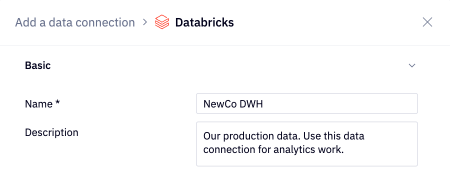
- Name and Description - Set a display name and optional description to help identify your data connection.
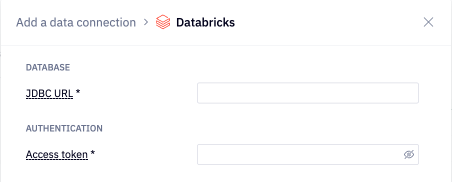
- JDBC URL (instructions to locate)
- Access token (instructions to generate)
Additional settings
The data connection form includes several optional sections:
- Advanced - Optional settings like custom SQL formatting, including schema data for AI, and connecting via SSH.
- Access - Optional data connection permissions.
- Schema browsing - Recommended settings like scheduling schema browser refreshes and schema filtering, both of which are recommended for performance and AI agent accuracy.
If you use a firewall to restrict database access, you'll need to add Hex's IP addresses to your allowlist.
OAuth setup
- Available on the Enterprise plan.
- Users need the Admin workspace role to register OAuth apps and configure OAuth data connections.
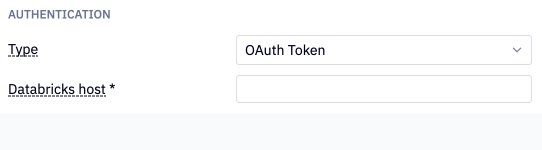
OAuth requires each Hex user to authenticate to Databricks with their own credentials. Create a custom OAuth application in Databricks, register those client credentials in Hex as an OAuth app, then set a data connection's authentication type to OAuth Token. The host on the data connection must match the host on the app.
Connections with OAuth enabled can affect product behavior — learn more.
Step 1: Create a custom OAuth application in Databricks
A Databricks Admin enables a custom OAuth application and creates a CLIENT_ID and CLIENT_SECRET. Follow the Databricks OAuth documentation.
Set the allowed redirect URL to:
- Multi-tenant:
https://app.hex.tech/databricks-oauth-success - Single-tenant, EU, or HIPAA:
https://<YOUR-HEX-DOMAIN-NAME>/databricks-oauth-success
Step 2: Register the OAuth app in Hex
- Go to Settings → Data sources → OAuth apps.
- Select App, then Databricks.
- Enter an App name, the Databricks host (
https://<your-databricks-instance>.cloud.databricks.com), the OAuth Client ID, and the OAuth Client secret. - Select Add app. Hex opens the Databricks sign-in screen. After you sign in, the app is registered.
Step 3: Update your data connection
Edit your Databricks data connection and set Authentication type to OAuth Token. The host on the data connection must match the host on the OAuth app. Configure OAuth permissions on the connection as needed.